Real-Time Translator for OBS Studio
Add live translated voice to your OBS streams. Sonqra Virtual Microphone plugs into OBS as an audio source, so international viewers hear you in their language while you speak yours.
Works with your favorite apps & games




How to set up a real-time translator in OBS
Sonqra sits between your microphone and OBS, so setup is a device switch — not a plugin install.
Install Sonqra
Install Sonqra for Windows or macOS, then choose the language you speak and the language your viewers should hear.
Start translation
Click “Start Translation” in Sonqra so the virtual microphone starts carrying your translated voice.
Select the virtual microphone
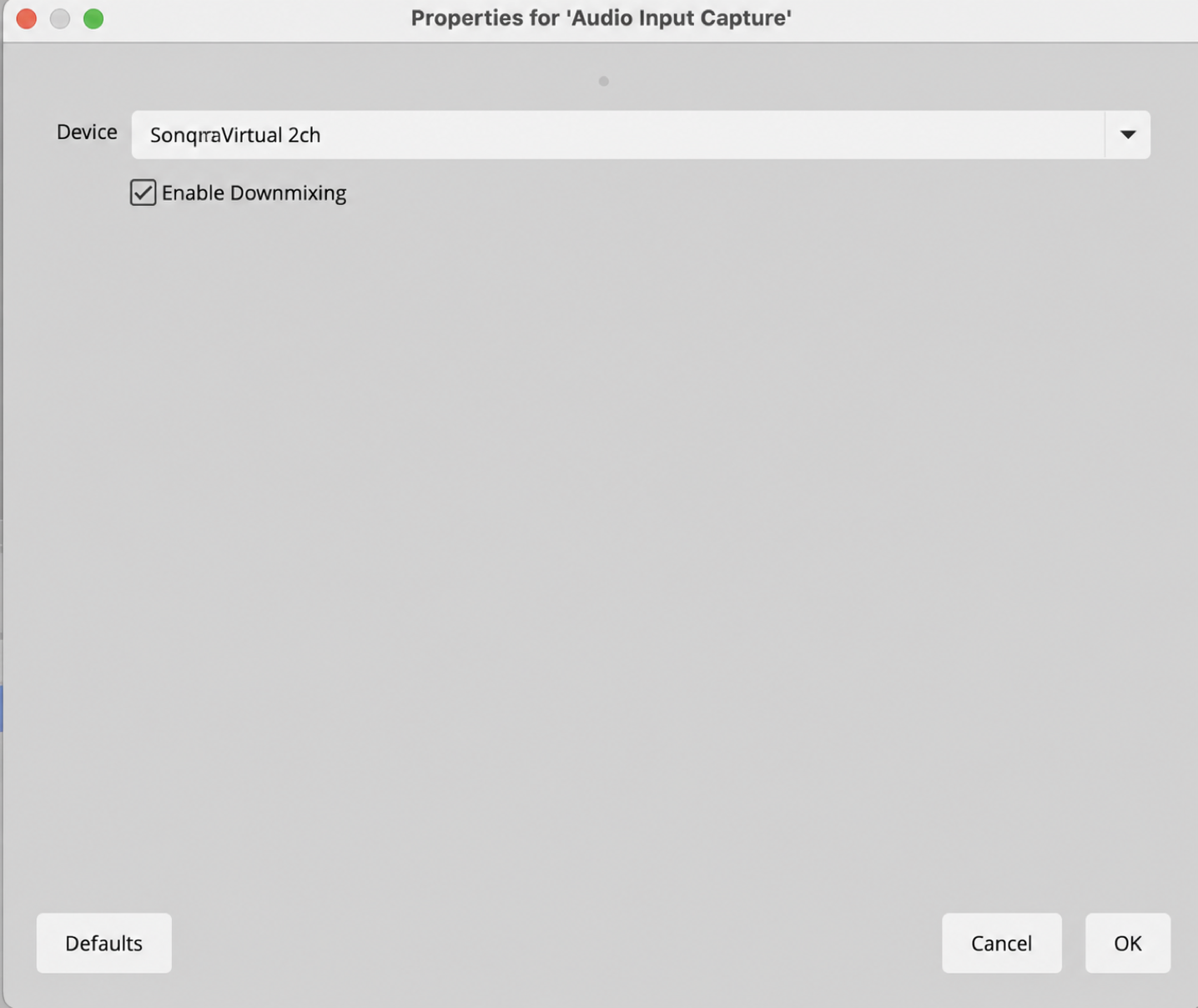
In OBS, open Settings → Audio and set Sonqra Virtual Microphone as your Mic/Auxiliary Audio device.
Check your levels and go live
Speak, confirm the translated audio moves the meters in your OBS audio mixer, and start streaming.
Why streamers translate with Sonqra
A stream in one language caps your audience at one language. Routing translated speech through OBS lets the same broadcast reach viewers who would otherwise scroll past.
Grow beyond one language
Reach viewers on Twitch, YouTube, and TikTok who do not speak your source language.
Keep your stream setup
Sonqra is just another audio device to OBS — your scenes, overlays, and alerts stay untouched.
Built for live pacing
Designed for low-latency conversation, so translation keeps up with gameplay and chat.
Start free
Test the full OBS workflow on the free plan and upgrade only when translation becomes part of your stream.
OBS translation FAQ
Setup details for streamers adding live voice translation to OBS Studio.
How do I use a real-time translator with OBS?
Install Sonqra, click “Start Translation”, then select Sonqra Virtual Microphone as the Mic/Auxiliary Audio device in OBS Settings → Audio. Your stream picks up the translated voice automatically.
Does Sonqra need an OBS plugin?
No. Sonqra appears as a standard audio input device, so OBS treats it like any microphone — no plugins, scripts, or browser sources required.
Can viewers still hear my original voice?
You choose what OBS captures: route the translated voice, your original voice, or both by adding a second audio input to your scene.
How much delay does translation add to a stream?
Sonqra is designed for low-latency conversation. Actual delay depends on your device, network, and language pair, and sits alongside your normal stream delay.
Which languages can I stream in?
Sonqra supports 30+ popular languages, including English, Spanish, French, German, Japanese, Korean, Mandarin, Portuguese, and Arabic.
Does this work with Twitch, YouTube, and TikTok?
Yes. Sonqra translates the audio before it reaches OBS, so it works with any platform you stream to from OBS.
Ready to stream in every language?
Download Sonqra, connect it to OBS, and go live for a global audience.