Sonqra User Guide
Everything you need to know to use Sonqra effectively
Want a deeper look at using Sonqra as a real-time voice translator for streaming, gaming, and meetings? Explore the real-time translator page
Getting Started with Sonqra
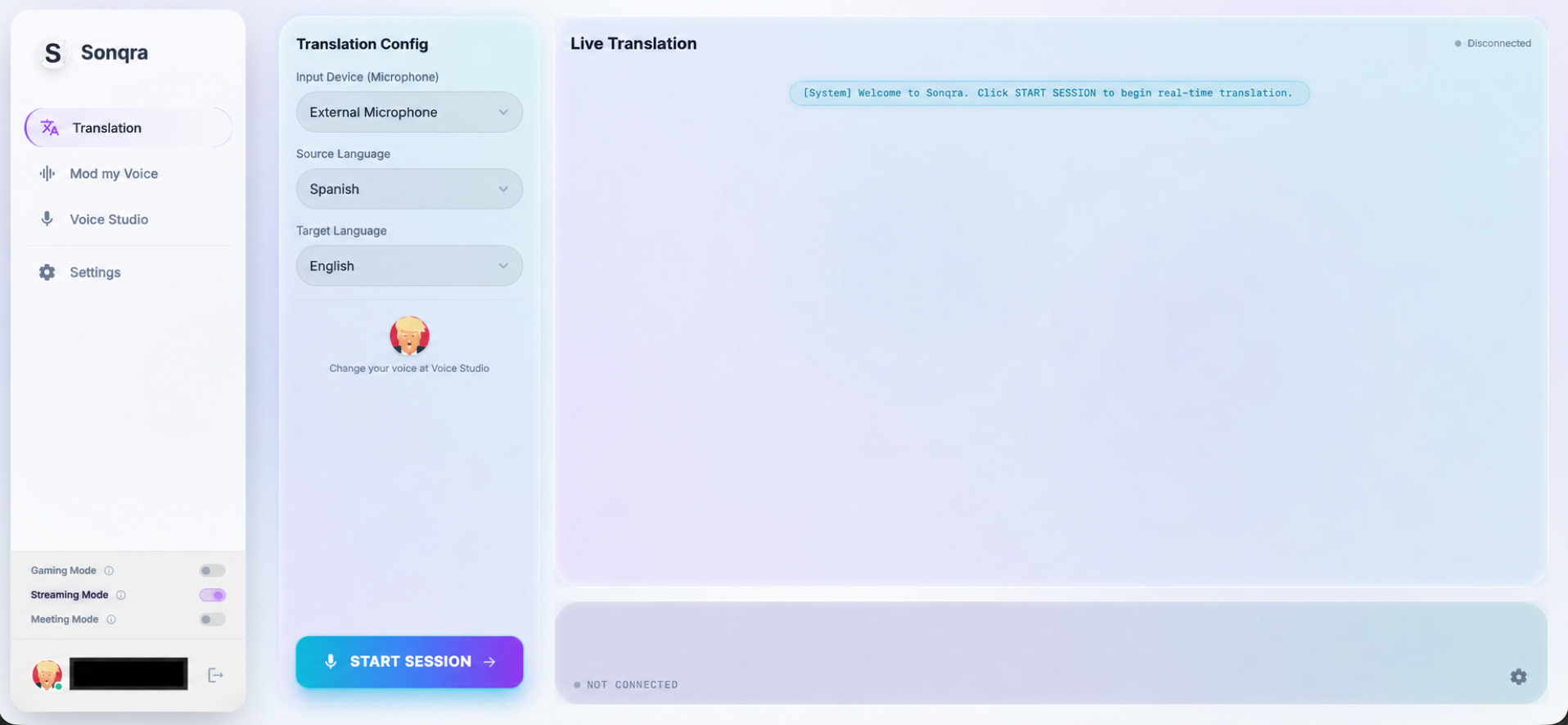
Understanding the Interface
- Source Language: The language you'll be speaking
- Target Language: The language Sonqra will translate to
- Start Translation: Button to begin the translation process
Voice Studio
You can customize your translated voice in Voice Studio. Choose from a variety of voice profiles to find the one that best represents you, or create a personalized voice clone.
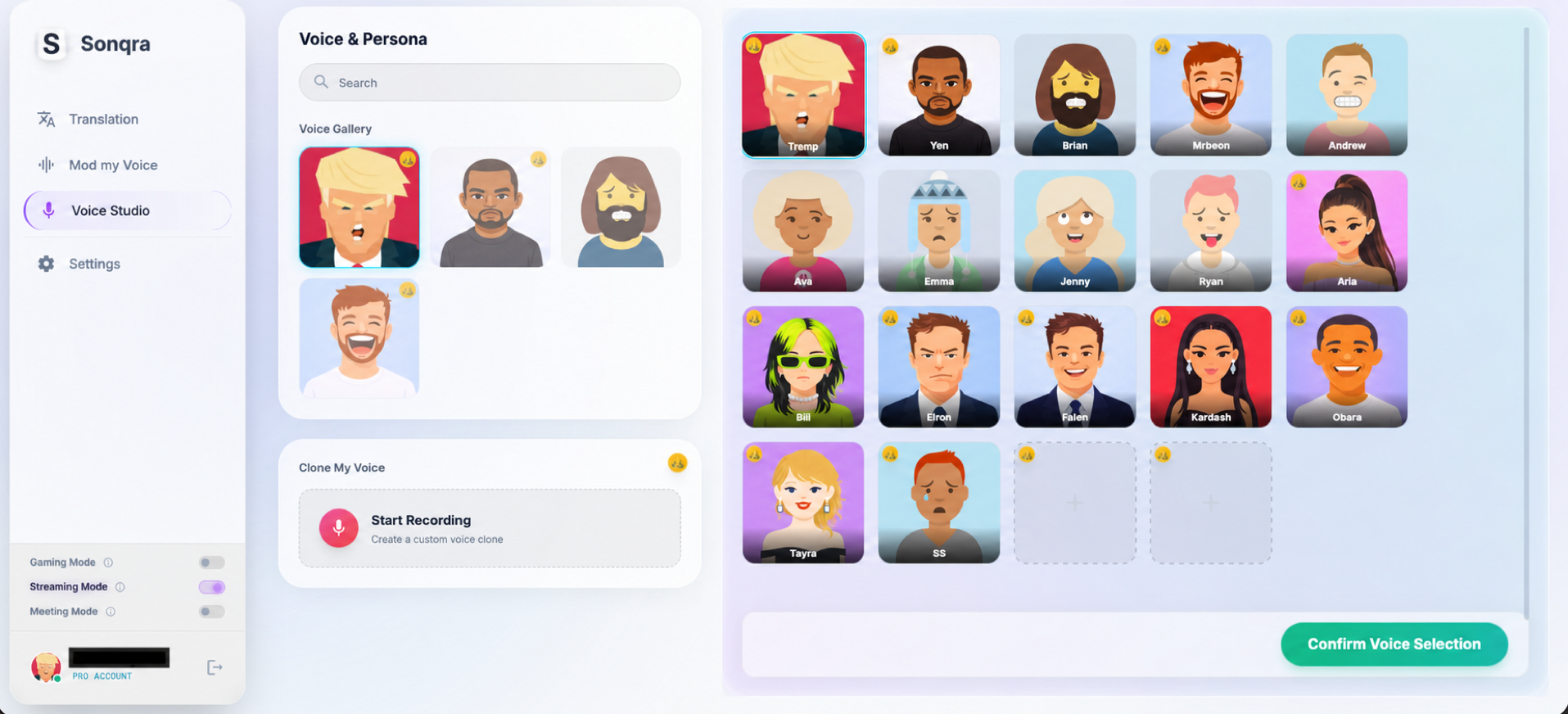
How to Use Sonqra
- 1Select your source language
Click the "Source Language" dropdown and choose the language you'll be speaking.
- 2Select your target language
Click the "Target Language" dropdown and choose the language you want to translate to.
- 3Start translation
Click the "Start Translation" button to activate Sonqra.
- 4Use Sonqra in your application
Open your preferred application (OBS, Discord, Teams, Zoom, etc.) and select "Sonqra Virtual Microphone" as the input device.
- 5Start speaking
Speak into your physical microphone and your voice will be translated in real-time.
Using with OBS Studio
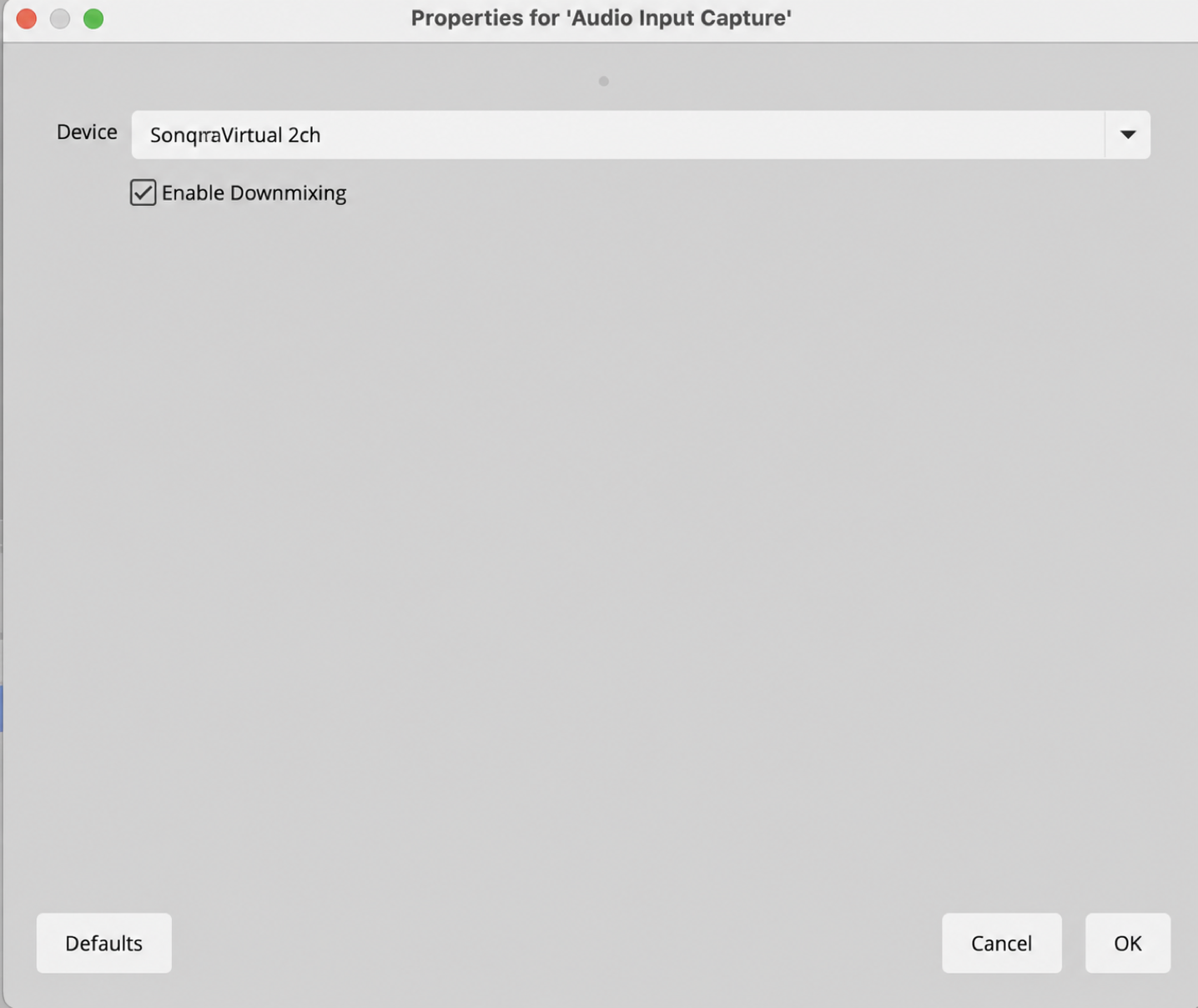
Sonqra works seamlessly with OBS Studio for streaming with real-time voice translation.
Setup Instructions
- 1Launch Sonqra
Start Sonqra and select your source and target languages.
- 2Start translation
Click the "Start Translation" button in Sonqra.
- 3Launch OBS Studio
Open OBS Studio.
- 4Add audio input in OBS
In OBS, go to the Audio Mixer section at the bottom of the window. Click the "+" icon or go to Settings > Audio.
- 5Select Sonqra Virtual Microphone
Add a new audio input capture and select "Sonqra Virtual Microphone" from the device list.
Using with Discord
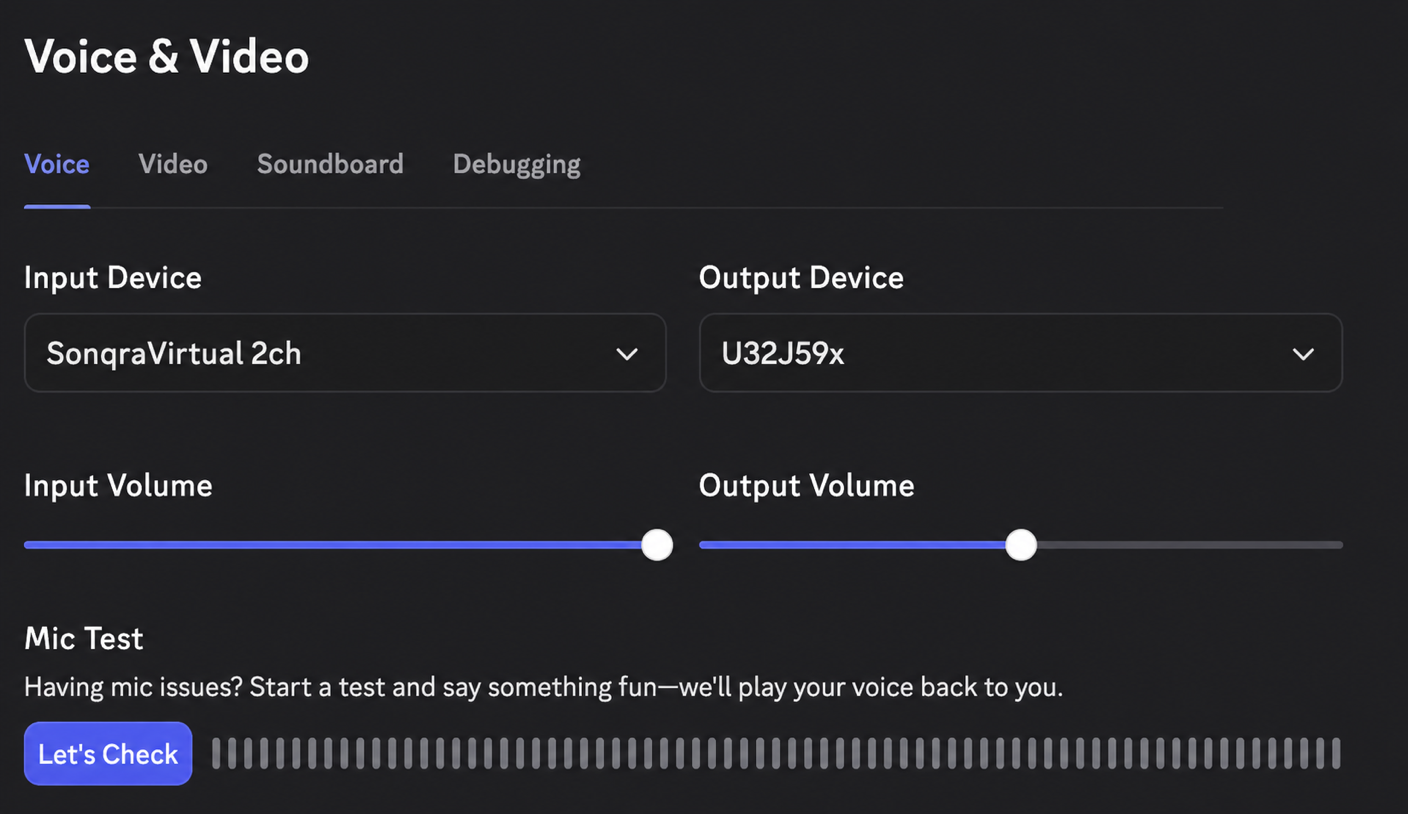
Use Sonqra to communicate across language barriers in Discord voice channels and calls.
Setup Instructions
- 1Launch Sonqra
Start Sonqra and select your source and target languages.
- 2Start translation
Click the "Start Translation" button in Sonqra.
- 3Open Discord settings
In Discord, click the gear icon (User Settings) next to your username.
- 4Navigate to Voice & Video
In the left sidebar, click on "Voice & Video" under App Settings.
- 5Select Sonqra Virtual Microphone
Under "Input Device," select "Sonqra Virtual Microphone" from the dropdown menu.
Using with Microsoft Teams
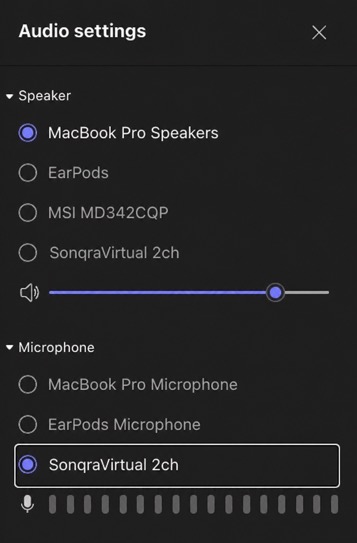
Break language barriers in professional meetings with Sonqra and Microsoft Teams.
Setup Instructions
- 1Launch Sonqra
Start Sonqra and select your source and target languages.
- 2Start translation
Click the "Start Translation" button in Sonqra.
- 3Open Teams settings
In Microsoft Teams, click your profile picture in the top-right corner and select "Settings."
- 4Go to Devices
In the Settings panel, click on "Devices" in the left sidebar.
- 5Select Sonqra Virtual Microphone
Under "Audio devices," set the Microphone to "Sonqra Virtual Microphone".
Using with Zoom
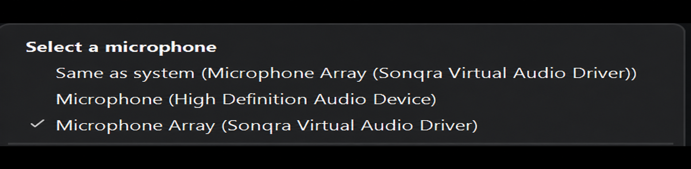
Use Sonqra for real-time voice translation in Zoom meetings and webinars.
Setup Instructions
- 1Launch Sonqra
Start Sonqra and select your source and target languages.
- 2Start translation
Click the "Start Translation" button in Sonqra.
- 3Open Zoom settings
In Zoom, click the gear icon (Settings) in the top-right corner.
- 4Navigate to Audio
Click "Audio" in the left sidebar.
- 5Select Sonqra Virtual Microphone
Under "Microphone," select "Sonqra Virtual Microphone" from the dropdown.
Troubleshooting
Virtual Microphone Not Appearing
- Grant permissions: Make sure you grant all related permissions during installation
- Install driver during installation: Ensure the virtual audio driver was installed during the Sonqra installation process
- Restart your computer: The virtual audio driver may need a restart to initialize properly
No Audio Output
- Check microphone selection: Make sure only the Sonqra Virtual Microphone is selected as the input device in your application (Teams/OBS/Zoom/Discord)
- Check speaker settings: Set up your speaker/output device to be your regular speaker
- Verify Sonqra is running: Ensure Sonqra is active and translation has been started