Voice Translator for Discord
Talk to teammates who speak another language. Sonqra Virtual Microphone works as your Discord input device, so everyone in the voice channel hears you in their own language.
Works with your favorite apps & games


How to translate your voice in Discord
Discord treats Sonqra as an ordinary microphone, so you configure it once in User Settings and it applies to every server.
Install Sonqra
Install Sonqra for Windows or macOS, then pick the language you speak and the language your teammates should hear.
Start translation
Click “Start Translation” in Sonqra so the virtual microphone starts carrying your translated voice.
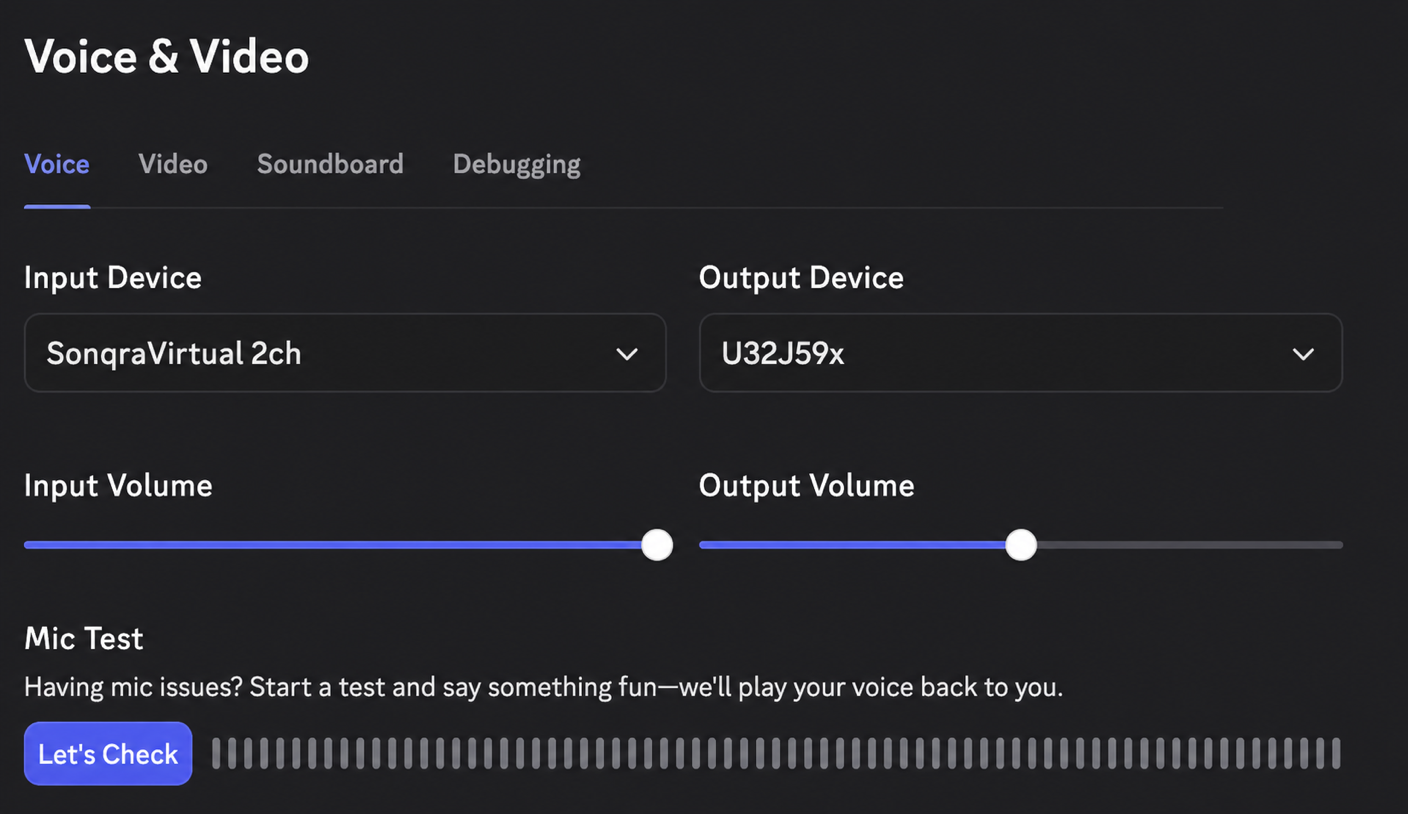
Set the Discord input device
In Discord, open User Settings → Voice & Video and choose Sonqra Virtual Microphone as your Input Device.
Join a voice channel
Speak, watch the Discord input meter respond, and your teammates hear the translation in real time.
Why teams talk across languages with Sonqra
Discord voice chat assumes everyone shares a language. Translating at the microphone lets a mixed-language group stay in one channel instead of splitting up or falling back to text.
Stay in one voice channel
No parallel text channel or copy-pasting into a translator mid-conversation.
Nothing to install server-side
Sonqra runs on your machine as an audio device — you do not need bot permissions or admin rights on the server.
Built for live pacing
Designed for low-latency conversation, so callouts and banter still land in time.
Start free
Test the full Discord workflow on the free plan and upgrade when translation becomes part of how your group plays.
Discord translation FAQ
Setup details for players and communities adding live voice translation to Discord.
How do I translate my voice in Discord?
Install Sonqra, start translation, then select Sonqra Virtual Microphone as your Input Device in Discord User Settings → Voice & Video.
Does this need a Discord bot?
No. Sonqra runs on your computer as an audio device, so there is nothing to add to the server and no permissions to request.
Can I translate what other people say?
Sonqra translates your own voice going out. Each participant runs Sonqra to be understood by the rest of the channel.
Will translation work while I am in a game?
Yes. Sonqra keeps translating in the background while you play, since Discord simply reads from the virtual microphone.
Which languages are supported?
Sonqra supports 30+ popular languages, including English, Spanish, French, German, Japanese, Korean, Mandarin, Portuguese, and Arabic.
Does it work with Discord push-to-talk?
Yes. Push-to-talk controls when Discord transmits, and Sonqra supplies the translated audio it transmits.
Ready to talk to anyone on Discord?
Download Sonqra, set it as your Discord input device, and join your next call.